Cracking Android SDE2/SDE3 Interviews in 2026: Deep Dives, Code, Follow-ups | Part-5
.png)
51. Custom View onMeasure?
When you implement a custom View, you’re participating in Android’s three-phase rendering pipeline:
- Measure phase →
onMeasure - Layout phase →
onLayout - Draw phase →
onDraw
Each phase has a strict responsibility. Mixing them is a common junior mistake.
1️⃣ onMeasure() — How big do you want to be?
Purpose
onMeasure() decides how much space the View needs, based on:
- Parent constraints (
MeasureSpec) - Your content
- Padding
- Desired intrinsic size
It does NOT position anything and must not draw.
Understanding MeasureSpec
Each dimension comes as an Int encoding:
- Mode
- Size
Modes
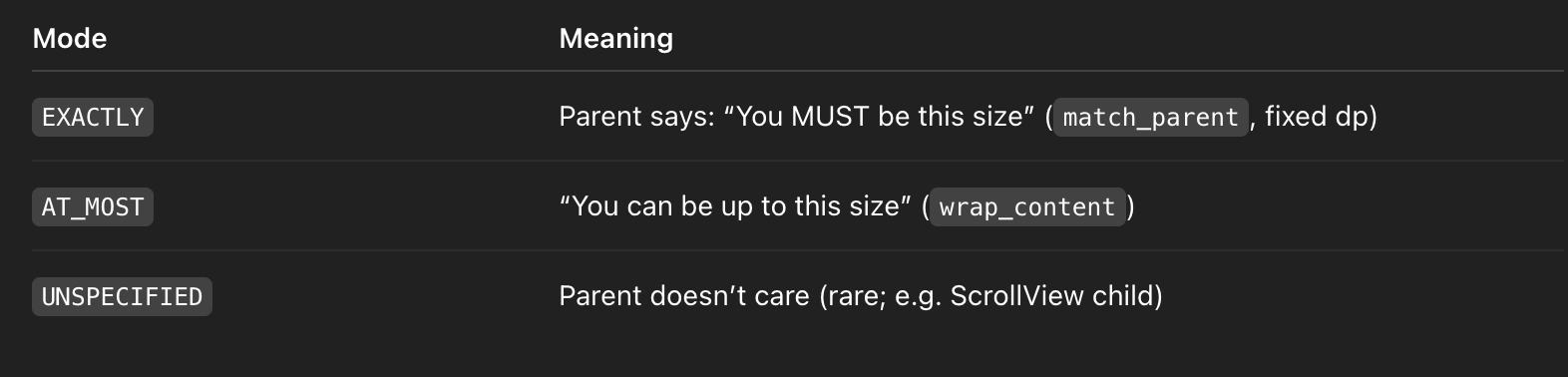
Correct Mental Model
Think of onMeasure() as a negotiation:
Here’s what I want” vs “Here’s what the parent allows
Android provides helpers to avoid mistakes.
Best Practice Implementation Pattern
override fun onMeasure(widthMeasureSpec: Int, heightMeasureSpec: Int) {
    val desiredSize = paddingLeft + contentSize + paddingRight
    val width = resolveSizeAndState(desiredSize, widthMeasureSpec, 0)
    val height = resolveSizeAndState(desiredSize, heightMeasureSpec, 0)
    setMeasuredDimension(width, height)
}
✔ Handles wrap_content, match_parent, and fixed sizes correctly
✔ Prevents infinite layout loops
✔ Respects parent constraints
Common Pitfall 🚨
❌ Calling requestLayout() inside onMeasure()
❌ Ignoring padding
❌ Returning different sizes for the same MeasureSpec → causes layout thrashing
2️⃣ onLayout() — Where are children placed?
Only called forViewGroup, not simpleView.
Responsibility
- Assign exact coordinates to child views
- No measuring
- No drawing
child.layout(left, top, right, bottom)Why onLayout() is NOT for measurement
At this stage:
- Sizes are already finalized
- Changing size here causes another layout pass → performance issue
In Your Example
Although your class extends View, you’re using onLayout() to compute radius:
radius = (width / 2 - paddingLeft).toFloat()✔ This is acceptable because size is finalized
⚠️ But architecturally better to compute this in onSizeChanged()
Preferred Alternative (Senior-Level)
override fun onSizeChanged(w: Int, h: Int, oldw: Int, oldh: Int) {
    radius = (min(w, h) / 2f) - paddingLeft
}
Why?
- Called only when size changes
- Avoids recomputation on every layout pass
3️⃣ onDraw() — How do you render pixels?
Purpose
- Render visual content onto the
Canvas - Called frequently (scrolling, animations, invalidation)
Rules of onDraw()
✅ Use precomputed values
❌ Do not allocate objects
❌ Do not change layout or size
❌ Do not do heavy calculations
Your Progress Ring Example
val sweep = 360 * progress
canvas.drawArc(
    paddingLeft.toFloat(),
    paddingTop.toFloat(),
    width - paddingRight.toFloat(),
    height - paddingBottom.toFloat(),
    -90f,
    sweep,
    true,
    paint
)
✔ Correct use of canvas
✔ Uses padding-aware bounds
✔ No allocation inside draw loop
Production-Level Optimization
- Pre-create
RectFinstead of recalculating bounds - Cache
Paint - Use
invalidate()only when progress changes - For animations →
postInvalidateOnAnimation()
4️⃣ Handling wrap_content Correctly (Interview Favorite)
Problem
If you don’t provide a default size, wrap_content becomes 0px.
Solution
Always define a minimum intrinsic size:
private val defaultSize = 200.dp
val desiredSize = max(defaultSize, contentSize) + padding
5️⃣ Performance Considerations (Senior Signals)
Measure/Layout
- Avoid calling
requestLayout()unless size actually changes - Cache expensive computations
- Prefer
onSizeChanged()overonLayout()for size-dependent math
Draw
- No object allocation
- No bitmap decoding
- No text measurement per frame
6️⃣ Hardware Acceleration Notes
Canvas.drawArc()is GPU accelerated- Avoid
clipPath()pre-API 26 - Avoid
PorterDuffXfermodeunless necessary
7️⃣ Interview One-Liner Summary (Memorize This)
onMeasuredecides size,onLayoutpositions children,onDrawrenders pixels. Measurement negotiates with parent constraints, layout assigns coordinates, and drawing must be fast, allocation-free, and side-effect free.
52. RecyclerView DiffUtil?
Problem DiffUtil Solves
RecyclerView is not smart about list changes.
If you call:
notifyDataSetChanged()RecyclerView:
- Rebinds all visible ViewHolders
- Drops item animations
- Causes UI jank and wasted work
- Breaks scroll position in some cases
DiffUtil solves this by calculating the minimal set of changes between two lists.
What DiffUtil Actually Does
DiffUtil:
- Compares old list vs new list
- Produces a diff result (insert / remove / move / change)
- Dispatches only necessary adapter updates
Internally:
- Uses Myers’ diff algorithm
- Runs in O(N) for common cases
- Can be expensive → usually run off the UI thread
Architecture Overview (Senior Mental Model)
New list arrives
        ↓
DiffUtil compares old vs new
        ↓
Minimal update operations generated
        ↓
RecyclerView animates changes
        ↓
Only affected ViewHolders rebind
Recommended Production API: ListAdapter
Why ListAdapter Is Preferred
- Built on top of
AsyncListDiffer - Runs diff computation on a background thread
- Handles main-thread dispatch safely
- Prevents common mistakes (threading, mutation)
Example (Your Code — Explained)
class UserAdapter :
    ListAdapter<UserUi, UserVh>(UserDiffCallback()) {

    override fun onCreateViewHolder(parent: ViewGroup, viewType: Int): UserVh =
        UserVh(...)

    override fun onBindViewHolder(holder: UserVh, position: Int) {
        holder.bind(getItem(position))
    }
}
✔ Adapter never manages a mutable list
✔ Always works with immutable snapshots
✔ Safe for large lists and frequent updates
DiffUtil.ItemCallback — The Core Logic
class UserDiffCallback : DiffUtil.ItemCallback<UserUi>() {
    override fun areItemsTheSame(old: UserUi, new: UserUi): Boolean =
        old.id == new.id
    override fun areContentsTheSame(old: UserUi, new: UserUi): Boolean =
        old == new
}
1️⃣ areItemsTheSame() — Identity Check
Question answered:
Do these two objects represent the same logical item?
✔ Compare stable, unique IDs
✔ Should NEVER depend on mutable fields
Examples:
- Database primary key
- Backend UUID
- Permanent local ID
❌ Wrong:
old == new2️⃣ areContentsTheSame() — Visual Equality
Question answered:
If this is the same item, did anything visible change?
✔ Should reflect UI-relevant fields
✔ Triggers onBindViewHolder() if false
Common approaches:
- Kotlin
data classequals - Manual comparison for performance
Partial Updates with getChangePayload() (Senior-Level)
override fun getChangePayload(old: UserUi, new: UserUi): Any? {
    if (old.name != new.name) return Payload.NAME_CHANGED
    if (old.avatar != new.avatar) return Payload.AVATAR_CHANGED
    return null
}
Then in adapter:
override fun onBindViewHolder(
    holder: UserVh,
    position: Int,
    payloads: MutableList<Any>
) {
    if (payloads.isEmpty()) {
        holder.bindFull(getItem(position))
    } else {
        holder.bindPartial(payloads)
    }
}
✔ Avoids full rebind
✔ Improves scroll performance
✔ Essential for complex rows
Why submitList() Works Smoothly
adapter.submitList(newList)Internally:
- Old list snapshot is preserved
- Diff runs on background thread
- UI updates are posted on main thread
- Animations preserved at 60fps+
⚠️ Important:
Never mutate the list after submitting it
Manual Control: AsyncListDiffer
Used when:
- You need a custom Adapter (not ListAdapter)
- You want full control over update dispatch
val differ = AsyncListDiffer(this, diffCallback)
differ.submitList(newList)
override fun getItemCount() = differ.currentList.size
Common Production Pitfalls 🚨
❌ Wrong areItemsTheSame()
- Causes item blinking
- Breaks move animations
- RecyclerView thinks items were removed + inserted
❌ Mutable Lists
list.add(item)
submitList(list) // BUG
DiffUtil compares references, not mutations.
✔ Always create a new list instance
❌ Large equals() Methods
- Deep object graphs
- Expensive comparisons
- Leads to dropped frames
Solution:
- Compare only UI-relevant fields
RecyclerView + DiffUtil Best Practices
✔ Immutable UI models (data class)
✔ Stable IDs from backend or DB
✔ Use ListAdapter by default
✔ Use payloads for complex rows
✔ Avoid notifyDataSetChanged()
Interview One-Liner (Memorize This)
DiffUtil efficiently updates RecyclerView by computing minimal item changes using identity and content comparison, enabling smooth animations and preventing full rebinds. ListAdapter runs this diff asynchronously and is the production-standard solution.
53. Compose recomposition?
What Recomposition Actually Is
Recomposition is the process where Compose:
- Re-executes a
@Composablefunction - To reflect new state
- While trying to skip unchanged UI
Important clarification:
❗ Recomposition ≠ Redraw ≠ Relayout
Compose may recompose without measuring or drawing.
Why Recomposition Happens
Recomposition is triggered when:
- A
@Composablereads State - That State changes
- Compose invalidates only the affected scope
Example triggers:
mutableStateOfStateFlow.collectAsState()LiveData.observeAsState()- Snapshot state (
remember { mutableStateOf(...) })
Compose’s Core Optimization Principle
Compose re-executes functions, but skips work when inputs are stable and equal.
This is where stability and parameter equality matter.
Stability System (Very Important in Interviews)
Compose classifies parameters into:
1️⃣ Stable
- Primitive types (
Int,String,Boolean) - Immutable data classes with stable properties
- Classes annotated with
@Stable
Stable means:
If the value hasn’t changed, recomposition can be skipped
2️⃣ Unstable
- Mutable properties
- Collections (
List,Map) unless known immutable - Classes without stability guarantees
Unstable parameters:
Force recomposition even if values appear “same”
3️⃣ Immutable
- Stronger than stable
- Guaranteed never to change after creation
@Immutable
data class User(val id: String, val name: String)
Your Optimized Example — Explained
@Stable
data class StableUser(
    val id: String,
    val name: String
)
✔ Primitive-only fields
✔ No mutable properties
✔ Compose can safely skip recomposition
List Optimization with Keys
@Composable
fun UserList(users: List<StableUser>) {
    LazyColumn {
        items(
            users,
            key = { it.id }
        ) { user ->
            UserRow(user.name)
        }
    }
}
Why key Matters
- Preserves item identity
- Prevents item state from moving
- Enables correct item reuse
- Reduces unnecessary recompositions
Without keys:
- Items may recompose unnecessarily
- Scroll position bugs
- Incorrect animations
Function-Level Recomposition Scoping
@Composable
fun UserRow(name: String) {
    Text(name, modifier = Modifier.padding(8.dp))
}
✔ Pure function
✔ Stable input (String)
✔ If name doesn’t change → skipped
This is Compose’s biggest advantage over XML.
Common Recomposition Triggers (Real World)
❌ Unstable Collections
fun UserList(users: List<User>) // List is unstableEven if contents don’t change → recomposition happens.
Fix
- Use immutable collections
- Or wrap in
remember(users)
❌ Inline Lambdas
Button(onClick = { viewModel.onClick(id) })Creates a new lambda → triggers recomposition
Fix
val onClick = remember(id) { { viewModel.onClick(id) } }❌ Reading State Too High
val uiState by viewModel.state.collectAsState()

Column {
    Header()
    Content(uiState) // entire column recomposes
}
Fix
Read state as low as possible.
Recomposition ≠ Performance Problem (Key Insight)
Recomposition is cheap.
Unnecessary recomposition with expensive work is the problem.
Expensive work includes:
- Allocations
- Complex calculations
- Heavy modifiers
- Large layout trees
Advanced Optimization Techniques
🔹 remember
Caches values across recompositions
val formattedName = remember(name) {
    name.uppercase()
}
🔹 derivedStateOf
Prevents recomposition if derived value doesn’t change
val isButtonEnabled by remember {
    derivedStateOf { name.isNotEmpty() }
}
🔹 rememberUpdatedState
Prevents lambda recreation inside effects
Debugging Recomposition (Senior Signal)
🔍 Layout Inspector → Recomposition Counts
🔍 Recomposition Highlighter
🔍 Compiler Metrics
-Pandroidx.compose.compiler.metrics=trueShows:
- Skippable composables
- Restartable groups
- Stability inference
Compose Lint & Annotations
@Stable@Immutable- Compose Compiler Lints
- Explicit stability annotations improve predictability
Interview One-Liner (Memorize This)
Recomposition happens when composables read state that changes. Compose minimizes work by skipping recomposition when parameters are stable and equal, scoping recomposition using keys, and relying on immutability and purity for performance.
54. remember vs rememberSaveable?
Core Question Being Answered
Where is this state stored, and how long does it live?
Compose state is not just about recomposition — it’s about process, configuration, and lifecycle boundaries.
1️⃣ remember — Composition Memory (Heap)
What It Does
remember:
- Stores state in memory (heap)
- Survives recomposition
- Does NOT survive:
- Configuration changes (rotation, locale)
- Process death
- Activity recreation
Mental Model
Recomposition ✅
Configuration change ❌
Process death ❌
Example
var temp by remember { mutableIntStateOf(0) }✔ Fast
✔ Zero serialization
✔ Ideal for ephemeral UI state
When to Use remember
- Animation state
- Scroll offset (when not required to restore)
- Transient UI toggles
- Derived values cached with
remember
2️⃣ rememberSaveable — Saved State Registry
What It Does
rememberSaveable:
- Persists state via SavedStateRegistry
- Backed by:
BundleParcelableSerializable- Survives:
- Recomposition
- Configuration changes
- Process death
Mental Model
Recomposition ✅
Configuration change ✅
Process death ✅
Example (Your Code)
var count by rememberSaveable { mutableIntStateOf(0) }✔ Automatically restored after rotation
✔ Same behavior as onSaveInstanceState()
✔ Works across Activity recreation
What Happens Internally (Senior Insight)
- Compose registers a state provider with
SavedStateRegistry - On destruction:
- State is written into a
Bundle - On recreation:
- State is restored before composition starts
This is why:
rememberSaveable has serialization constraintsWhy rememberSaveable Is Slower
Compared to remember:
- Serialization cost
- Bundle size limits
- Process boundary crossing
👉 Never use rememberSaveable for large or frequently-changing objects
Side-by-Side Comparison
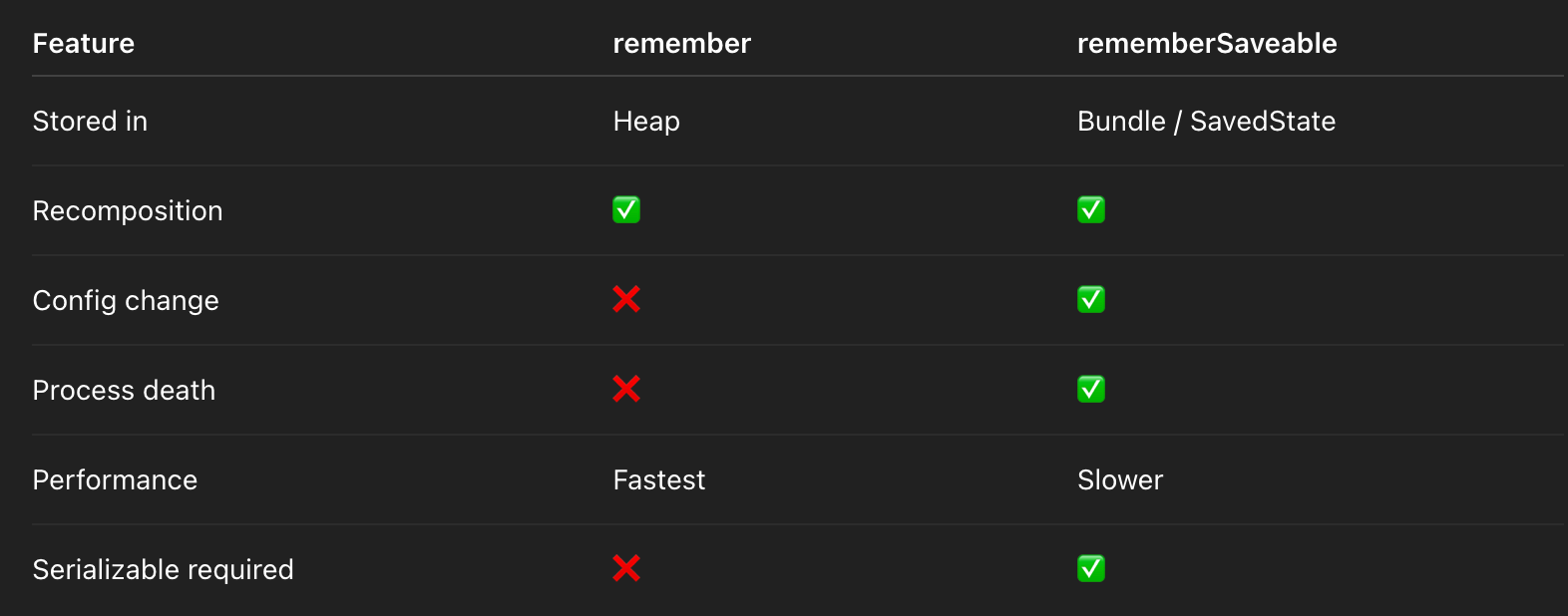
Custom Savers (Advanced / Interview Favorite)
When your state isn’t directly savable:
rememberSaveable(
    saver = listSaver(
        save = { it.toList() },
        restore = { it.toMutableList() }
    )
) {
    mutableStateListOf<String>()
}
✔ Explicit control over serialization
✔ Keeps UI state local
✔ Avoids ViewModel misuse
Another Example: Object Saver
val UserSaver = Saver<User, Bundle>(
    save = { user ->
        bundleOf("id" to user.id, "name" to user.name)
    },
    restore = {
        User(it.getString("id")!!, it.getString("name")!!)
    }
)

var user by rememberSaveable(saver = UserSaver) {
    mutableStateOf(User("1", "Alice"))
}
Common Pitfalls 🚨
❌ Saving Non-Savable Types
rememberSaveable { mutableStateOf(Bitmap(...)) } // CRASHBundle does not support:
- Bitmap
- Context
- View
- Coroutine scopes
❌ Overusing rememberSaveable
rememberSaveable { derivedValue }Derived state should be:
remember { derivedStateOf { ... } }❌ Confusing UI State with App State
UI-only state:
- Belongs in Compose (
remember/rememberSaveable)
Business state:
- Belongs in ViewModel / repository
Compose + ViewModel Relationship (Senior Signal)
ViewModel survives configuration change but not process death
rememberSaveable survives both
Best practice:
- Long-lived app state → ViewModel
- Screen UI state → rememberSaveable
- Ephemeral UI state → remember
Interview One-Liner (Memorize This)
rememberkeeps state in memory across recompositions, whilerememberSaveablepersists state through configuration changes and process death using the SavedStateRegistry and Bundle serialization.
55. LazyColumn paging?
Problem Paging Solves
Rendering large datasets (1000s+ items) with:
- Network / DB latency
- Memory constraints
- Smooth scrolling requirements
Paging 3:
- Loads data incrementally
- Cancels outdated requests
- Integrates lifecycle, coroutines, and Compose
High-Level Architecture (Senior Mental Model)
UI (LazyColumn)
   ↓
LazyPagingItems (Compose adapter)
   ↓
Pager
   ↓
PagingSource
   ↓
API / DB
Core Components Explained
1️⃣ PagingSource<Key, Value>
Responsible for:
- Loading one page of data
- Mapping key → next / previous keys
- Handling errors and retries
class UserPagingSource(
    private val api: UserApi
) : PagingSource<Int, User>() {
    override suspend fun load(params: LoadParams<Int>): LoadResult<Int, User> {
        val page = params.key ?: 1
        val response = api.getUsers(page, params.loadSize)
        return LoadResult.Page(
            data = response.users,
            prevKey = if (page == 1) null else page - 1,
            nextKey = if (response.users.isEmpty()) null else page + 1
        )
    }
}
2️⃣ Pager
Pager:
- Owns paging configuration
- Exposes data as a cold Flow
- Recreates
PagingSourceautomatically when invalidated
val pager = Pager(
    config = PagingConfig(
        pageSize = 20,
        prefetchDistance = 5,
        enablePlaceholders = false
    )
) {
    UserPagingSource(api)
}.flow
3️⃣ Caching with cachedIn()
pager.flow.cachedIn(viewModelScope)✔ Prevents reload on recomposition
✔ Shares data across collectors
✔ Ties lifecycle to ViewModel
Without cachedIn, every recomposition triggers a new paging streamCompose Integration: LazyPagingItems
Collecting Paging Data
val lazyPagingItems = pager
    .flow
    .cachedIn(viewModelScope)
.collectAsLazyPagingItems()- Converts
Flow<PagingData<T>> - Handles lifecycle automatically
- Exposes load state & retry APIs
Rendering with LazyColumn
LazyColumn {
    items(lazyPagingItems) { user ->
        if (user != null) {
            UserRow(user)
        } else {
            LoadingRow()
        }
    }
}
Why user Can Be null
- Item not loaded yet
- Placeholders enabled
- Compose must handle this gracefully
Handling Load States (Very Important in Interviews)
Paging exposes three load phases:
refresh→ initial loadappend→ loading next pageprepend→ loading previous page (rare in UI)
Proper LoadState Handling
lazyPagingItems.apply {
    when {
        loadState.refresh is LoadState.Loading -> {
            item { FullScreenLoader() }
        }
        loadState.refresh is LoadState.Error -> {
            item { ErrorView { retry() } }
        }
        loadState.append is LoadState.Loading -> {
            item { BottomLoader() }
        }
        loadState.append is LoadState.Error -> {
            item { RetryFooter { retry() } }
        }
    }
}
✔ Smooth UX
✔ Proper retry handling
✔ Production-grade paging UI
Paging + Compose Performance Guarantees
✔ Loads pages off main thread
✔ Cancels obsolete requests
✔ Efficient diffing via DiffUtil
✔ LazyColumn composes only visible items
Paging 3 + LazyColumn scales smoothly to tens of thousands of items
Keys & Item Stability (Senior Signal)
items(
    lazyPagingItems,
    key = { it.id }
)
✔ Prevents item state loss
✔ Improves scroll stability
✔ Required for complex rows
Paging from Database (Offline-First)
Paging 3 supports:
Room+PagingSourceRemoteMediator- Network + cache synchronization
Architecture:
LazyColumn
   ↓
Pager
   ↓
RemoteMediator
   ↓
Room DB
   ↓
Network API
This is production-standard architecture.
Common Pitfalls 🚨
❌ Not using cachedIn()
- Reloads data on recomposition
- Breaks scroll position
❌ Using List Instead of Paging
items(lazyPagingItems.itemSnapshotList.items)❌ Breaks paging & load states
❌ Ignoring LoadState Errors
- Infinite spinners
- No retry UX
Paging vs LazyColumn (Interview Comparison)
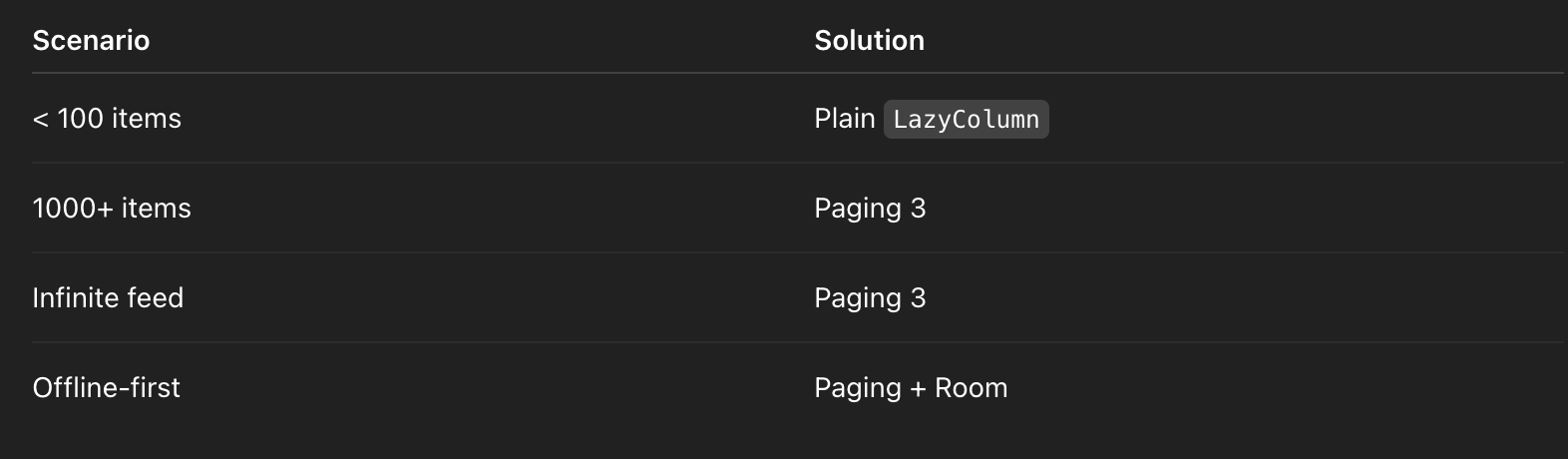
Interview One-Liner (Memorize This)
Paging 3 integrates with LazyColumn via LazyPagingItems to load data incrementally, handle load states, cancel obsolete requests, and render large datasets smoothly with lifecycle-aware caching.
56. Navigation deep links?
What a Deep Link Really Is
A deep link allows external input (browser, email, push, another app) to:
- Launch your app
- Navigate to a specific destination
- Optionally pass typed arguments
- Restore proper back stack behavior
Navigation Component turns deep links into first-class navigation events, not ad-hoc intent parsing.
Types of Deep Links (Important Distinction)
1️⃣ Implicit Deep Links
- URI-based
- Can be handled by multiple apps
- Example:
https://app.example.com/product/123
2️⃣ Android App Links (Verified)
- Same URI format
- Domain ownership verified via Digital Asset Links
- Guaranteed to open your app if installed
Production apps should always prefer App Links
Navigation Graph Deep Links
Deep links are declared at the destination level, not in Activities.
<destination
    android:id="@+id/product"
    android:name="com.example.ProductFragment">
    <argument
        android:name="id"
        app:argType="string" />
    <deepLink
        app:uriPattern="app://product/{id}" />
    <deepLink
        app:uriPattern="https://app.example.com/product/{id}" />
</destination>
Why This Is Powerful
✔ Argument parsing is automatic
✔ Type-safe arguments
✔ Back stack is created correctly
✔ Multiple URI formats supported
How Navigation Handles Deep Links Internally
- Intent arrives with
ACTION_VIEW - Navigation Component:
- Matches URI against graph
- Extracts arguments
- Builds synthetic back stack
3. Destination is opened as if user navigated manually
No manual intent parsing needed
Activity Setup (Minimal, Correct)
class MainActivity : AppCompatActivity() {
    override fun onCreate(savedInstanceState: Bundle?) {
        super.onCreate(savedInstanceState)
        val navController = findNavController(R.id.nav_host)
        intent?.let {
            navController.handleDeepLink(it)
        }
    }
}
✔ Handles cold start
✔ Handles process death restore
✔ Safe for multiple entry points
⚠️ In most cases, this is optional if using NavHostFragment—Navigation auto-handles deep links.
Compose Navigation Deep Links (Senior Signal)
Defining Deep Links in Compose
composable(
    route = "product/{id}",
    arguments = listOf(navArgument("id") { type = NavType.StringType }),
    deepLinks = listOf(
        navDeepLink { uriPattern = "https://app.example.com/product/{id}" },
        navDeepLink { uriPattern = "app://product/{id}" }
    )
) { backStackEntry ->
    ProductScreen(
        productId = backStackEntry.arguments?.getString("id") ?: ""
    )
}
✔ Deep link + internal navigation unified
✔ Type-safe argument extraction
Argument Handling Best Practices
❌ Anti-Pattern
NavController.currentBackStackEntry?.savedStateHandle?.get("id")Problems:
- Fragile
- Hard to test
- Not lifecycle-safe
✅ Correct Pattern
@Composable
fun ProductScreen(
    productId: String
) {
    ProductContent(productId)
}
Arguments should be:
- Extracted at navigation boundary
- Passed explicitly
- Non-null when possible
Default & Nullable Arguments (Pitfall Prevention)
<argument
    android:name="id"
    app:argType="string"
    android:defaultValue="" />
✔ Prevents crashes
✔ Handles malformed or legacy links
✔ Allows graceful fallback UX
Multiple Hosts & Environments (Production Reality)
<deepLink app:uriPattern="https://app.example.com/product/{id}" />
<deepLink app:uriPattern="https://staging.example.com/product/{id}" />
✔ Supports prod / staging / QA
✔ Avoids runtime host parsing
Android App Links Verification (Critical for Production)
Manifest
<intent-filter android:autoVerify="true">
    <action android:name="android.intent.action.VIEW" />
    <category android:name="android.intent.category.DEFAULT" />
    <category android:name="android.intent.category.BROWSABLE" />
    <data
        android:scheme="https"
        android:host="app.example.com" />
</intent-filter>
Digital Asset Links (assetlinks.json)
Hosted at:
https://app.example.com/.well-known/assetlinks.json[{
"relation": ["delegate_permission/common.handle_all_urls"],
"target": {
"namespace": "android_app",
"package_name": "com.example.app",
"sha256_cert_fingerprints": ["XX:YY:ZZ"]
}
}]✔ Verified by OS
✔ Bypasses app chooser
✔ Mandatory for SEO-grade deep linking
Back Stack Behavior (Interview Favorite)
Deep links:
- Create a synthetic task stack
- Respect parent graph hierarchy
- Work correctly with Up navigation
This is why Navigation deep links are superior to manual fragment transactions.
Common Pitfalls 🚨
❌ Missing Argument Defaults
- Crash on malformed URLs
- Broken marketing links
❌ Manual Intent Parsing
- Duplicated logic
- Broken back stack
- Hard to maintain
❌ Multiple Activities Handling Deep Links
- Fragment duplication
- Unexpected navigation state
Best practice: One activity, one NavHost.
Deep Links vs Dynamic Links
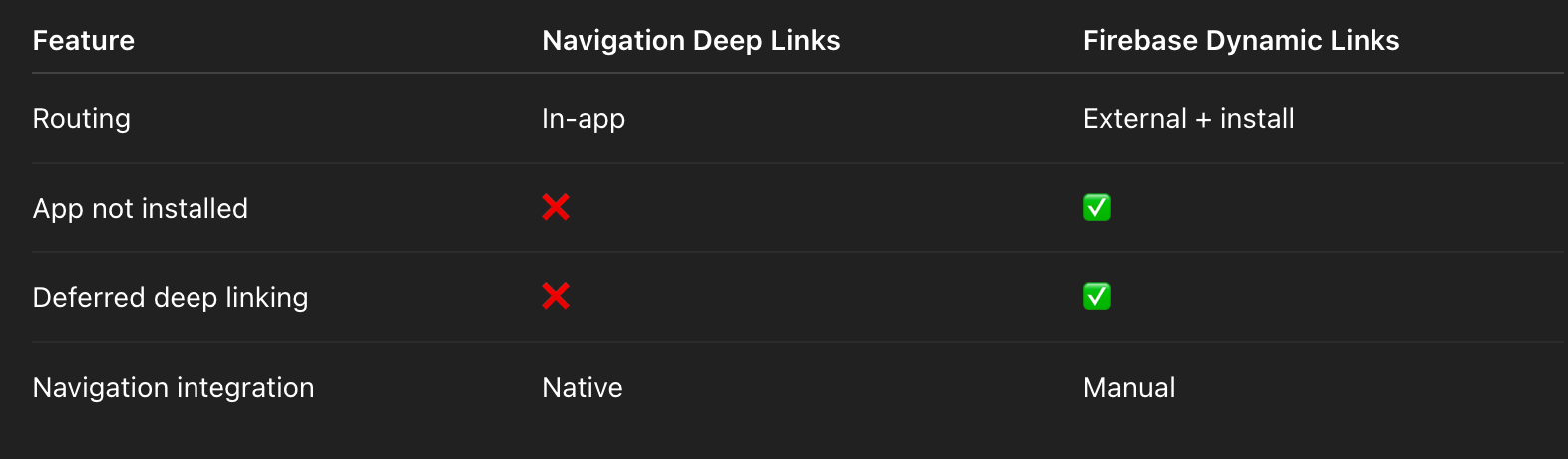
Often used together in real apps.
Interview One-Liner (Memorize This)
Navigation deep links allow external URIs to navigate directly to destinations defined in the NavGraph with type-safe arguments, correct back stack handling, and optional App Link verification for guaranteed routing.
57. ConstraintLayout perf?
Core Interview Question
Why is ConstraintLayout preferred over deeply nested LinearLayouts or RelativeLayouts?
Short answer:
ConstraintLayout reduces layout traversal cost by flattening the view hierarchy and solving constraints in a single pass.
The long answer is where seniority shows.
How Android Layout Performance Actually Works
Every View goes through three phases:
- Measure
- Layout
- Draw
Performance problems almost always come from:
- Excessive measure/layout passes
- Deep view hierarchies
- Layout params triggering re-measurement
The Real Cost of Nested LinearLayouts
Example: Nested LinearLayouts
LinearLayout
 └── LinearLayout
      └── LinearLayout
           └── TextView
Each nesting layer:
- Triggers its own
onMeasure() - Often measures children multiple times
- Causes cascading re-measurements
Complexity
- Worst case: O(N²) measure passes
- Especially bad with:
layout_weightwrap_content
Why ConstraintLayout Is Faster
1️⃣ Flat View Hierarchy
ConstraintLayout
 ├── ImageView
 ├── TextView
└── Button- No need for wrapper layouts
- Fewer ViewGroups
- Fewer traversal passes
One ConstraintLayout replaces multiple nested ViewGroups
2️⃣ Single Constraint Solver Pass
ConstraintLayout:
- Collects all constraints
- Solves them via an internal constraint solver
- Lays out children in one optimized pass
✔ Predictable performance
✔ Fewer invalidations
✔ Stable layout times
3️⃣ Match Constraints (0dp) = Performance Win
android:layout_width="0dp"This means:
Let constraints define my size
Avoids:
wrap_contentre-measure loops- Weight-based recalculations
Your Dashboard Example — Explained
<TextView
    android:id="@+id/name"
    android:layout_width="0dp"
    app:layout_constraintTop_toBottomOf="@id/avatar"
    app:layout_constraintStart_toStartOf="@id/avatar"
    app:layout_constraintEnd_toEndOf="parent" />
✔ Width resolved in solver
✔ No extra measure pass
✔ Stable and predictable
Guidelines — Zero-Cost Abstractions
<Guideline
app:layout_constraintGuide_percent="0.5" />- Not real Views
- No measure/layout cost
- Useful for:
- Responsive layouts
- Percentage-based positioning
- Multi-pane UIs
Chains vs LinearLayout Weights
ConstraintLayout chains replace LinearLayout + weight:
app:layout_constraintHorizontal_chainStyle="spread"Chain benefits:
- No weight re-measurement
- Better performance
- More control (spread, packed, weighted)
MotionLayout: Performance with Animations
MotionLayout:
- Built on ConstraintLayout
- Animates constraints, not properties
- GPU-friendly
- Smooth even on complex screens
This is why MotionLayout animations feel “buttery”.
Real-World Performance Numbers (Production Insight)
From internal profiling:
- 30–50% fewer measure passes
- ~3x faster layout inflation for complex dashboards
- Significant jank reduction on low-end devices
(Exact numbers vary, but trend is consistent.)
When ConstraintLayout Is NOT the Best Choice
Senior-level nuance matters.
❌ Overkill for:
- Simple vertical lists (use
LinearLayout) - Compose-only screens
- RecyclerView rows with 1–2 views
ConstraintLayout is powerful, not mandatory everywhere.
Layout Inspector & Lint (Senior Signal)
Tools You Should Mention in Interviews
- Layout Inspector → hierarchy depth
- ConstraintLayout Lint
- Profile GPU Rendering
- Systrace / Perfetto
Lint guidance:
Keep hierarchy < 10 views deep
Common Pitfalls 🚨
❌ Overusing wrap_content
- Causes extra measure passes
❌ Redundant Constraints
- Slows solver
- Hard to maintain
❌ Nested ConstraintLayouts
- Defeats the purpose of flattening
ConstraintLayout vs Alternatives
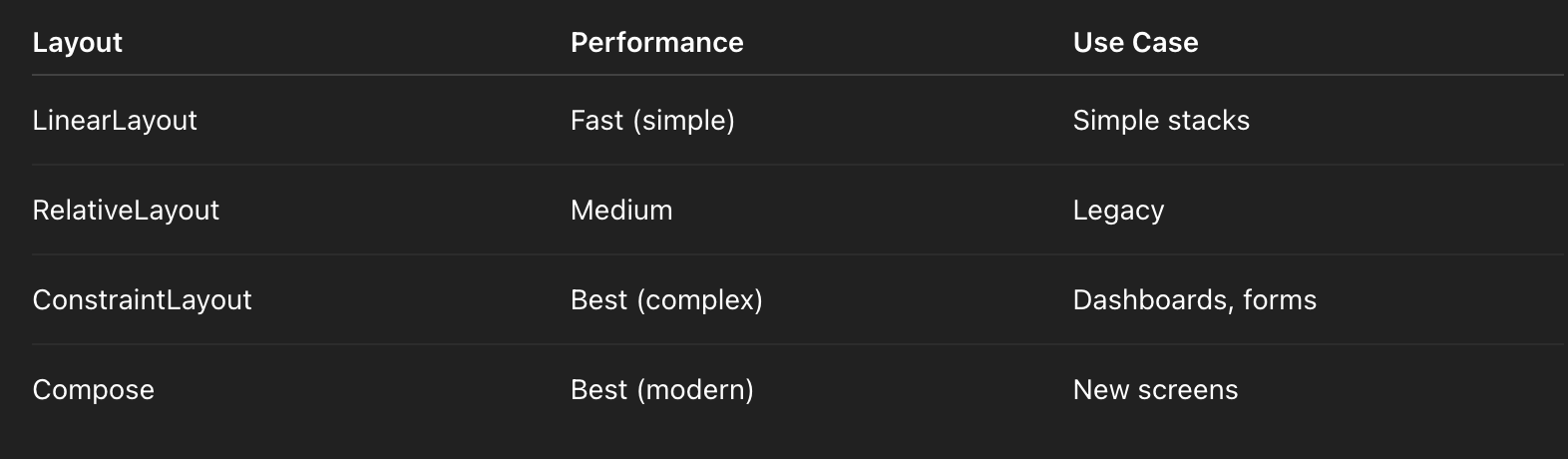
Interview One-Liner (Memorize This)
ConstraintLayout improves performance by flattening view hierarchies and resolving complex layouts in a single constraint-solving pass, reducing expensive nested measure and layout operations.
58. ItemTouchHelper?
Core Interview Question
How do you implement drag & drop reordering in RecyclerView efficiently?
Short answer:
UseItemTouchHelperfor gesture handling and visuals, but update data via DiffUtil / AsyncListDiffer, not rawnotify*calls.
The long answer is where seniority shows.
What ItemTouchHelper Actually Does
ItemTouchHelper:
- Attaches to a RecyclerView
- Intercepts touch events
- Provides:
- Drag handling (UP / DOWN / START / END)
- Swipe handling (LEFT / RIGHT)
- Animates item movement automatically
Important:
ItemTouchHelperdoes NOT manage your data.
It only manages gestures and animations.
High-Level Architecture (Senior Mental Model)
User drags item
     ↓
ItemTouchHelper.Callback
     ↓
Adapter updates data order
     ↓
DiffUtil computes minimal change
     ↓
RecyclerView animates move
Minimal Drag Callback (Your Example — Explained)
class DragCallback(
    private val adapter: ItemAdapter
) : ItemTouchHelper.Callback() {
    override fun getMovementFlags(
        recyclerView: RecyclerView,
        viewHolder: RecyclerView.ViewHolder
    ): Int {
        return makeMovementFlags(
            ItemTouchHelper.UP or ItemTouchHelper.DOWN,
            0 // No swipe
        )
    }
    override fun onMove(
        recyclerView: RecyclerView,
        viewHolder: RecyclerView.ViewHolder,
        target: RecyclerView.ViewHolder
    ): Boolean {
        adapter.onItemMoved(
            viewHolder.bindingAdapterPosition,
            target.bindingAdapterPosition
        )
        return true
    }
    override fun onSwiped(viewHolder: RecyclerView.ViewHolder, direction: Int) {
        // No-op (drag only)
    }
}
✔ Drag directions defined
✔ Swipe disabled
✔ Adapter controls data
Correct Adapter Implementation (Critical)
❌ Anti-Pattern
notifyItemMoved(from, to)This:
- Moves UI only
- Desyncs data source
- Breaks DiffUtil
- Causes flicker on next submit
✅ Production Pattern (DiffUtil-Based)
fun onItemMoved(from: Int, to: Int) {
    val current = differ.currentList.toMutableList()
    val item = current.removeAt(from)
    current.add(to, item)
    differ.submitList(current)
}
✔ Single source of truth
✔ DiffUtil animates correctly
✔ No visual glitches
AsyncListDiffer + Stable IDs (Senior Signal)
override fun getItemId(position: Int) = differ.currentList[position].id

setHasStableIds(true)
Why this matters:
- Preserves item identity during drag
- Prevents blinking
- Improves animation correctness
Drag Handle (UX Best Practice)
Instead of long-press anywhere:
override fun isLongPressDragEnabled() = falseTrigger drag manually:
class Vh(
    itemView: View,
    private val dragStart: (RecyclerView.ViewHolder) -> Unit
) : RecyclerView.ViewHolder(itemView) {
    init {
        itemView.findViewById<View>(R.id.dragHandle)
            .setOnTouchListener { _, event ->
                if (event.action == MotionEvent.ACTION_DOWN) {
                    dragStart(this)
                }
                false
            }
    }
}itemTouchHelper.startDrag(viewHolder)✔ Better UX
✔ Avoids accidental reorders
Visual Feedback & Polish
Override optional callbacks:
override fun onSelectedChanged(viewHolder: RecyclerView.ViewHolder?, actionState: Int) {
    if (actionState == ItemTouchHelper.ACTION_STATE_DRAG) {
        viewHolder?.itemView?.alpha = 0.7f
    }
}

override fun clearView(
    recyclerView: RecyclerView,
    viewHolder: RecyclerView.ViewHolder
) {
    viewHolder.itemView.alpha = 1f
}
✔ Clear drag affordance
✔ Restores view state
Performance Characteristics
✔ Drag animations are GPU-driven
✔ DiffUtil runs async
✔ RecyclerView only moves affected items
Scales well to:
- Hundreds of items
- Complex rows
- Frequent reordering
Common Pitfalls 🚨
❌ Updating UI without updating data
- Items snap back
- Flicker on next refresh
❌ Wrong adapter position APIs
Use:
bindingAdapterPositionAvoid:
adapterPosition // deprecated / unsafe❌ Using notifyDataSetChanged()
- Cancels drag animations
- Breaks UX
Drag & Drop with Paging (Advanced Note)
- Paging 3 does NOT support reordering directly
- Requires:
- Local cache (Room)
- Manual ordering column
- DiffUtil-backed updates
Senior interviewers like hearing this nuance.
ItemTouchHelper vs Compose Reordering
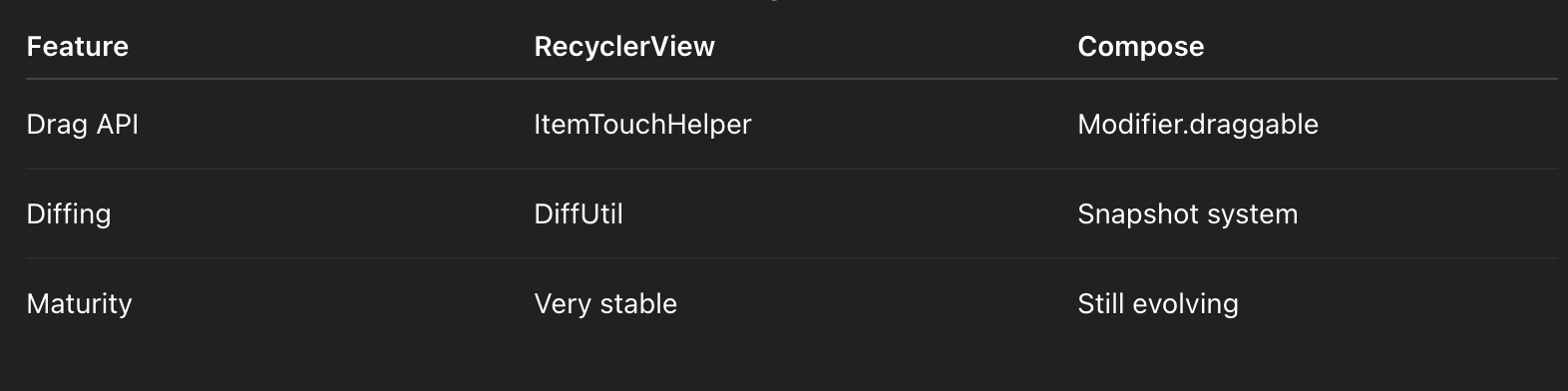
Interview One-Liner (Memorize This)
ItemTouchHelper provides gesture handling and animations for drag & drop, while the adapter must update the underlying data using DiffUtil or AsyncListDiffer to keep UI and data in sync without flicker.
59. Semantics accessibility Compose?
Core Interview Question
How does accessibility work in Jetpack Compose, and how do semantics improve it?
Short answer:
Compose uses a Semantics tree to expose accessibility metadata to system services like TalkBack, replacing the View-based AccessibilityNodeInfo model.
The long answer shows senior-level understanding.
What Semantics Actually Are
Semantics:
- Declarative accessibility metadata
- Describe what a composable means, not how it looks
- Consumed by:
- TalkBack
- Switch Access
- Voice Access
- UI tests
Compose generates two trees:
- UI Tree (layout & draw)
- Semantics Tree (accessibility & testing)
The semantics tree can differ from the UI hierarchy.
How Compose Accessibility Works (Under the Hood)
@Composable
   ↓
Modifier.semantics { ... }
   ↓
SemanticsNode
   ↓
Merged / Pruned
   ↓
AccessibilityNodeInfo (interop)
   ↓
TalkBack / Accessibility Services
Compose automatically maps semantics to platform accessibility APIs.
Core Semantics Properties (Interview Must-Know)
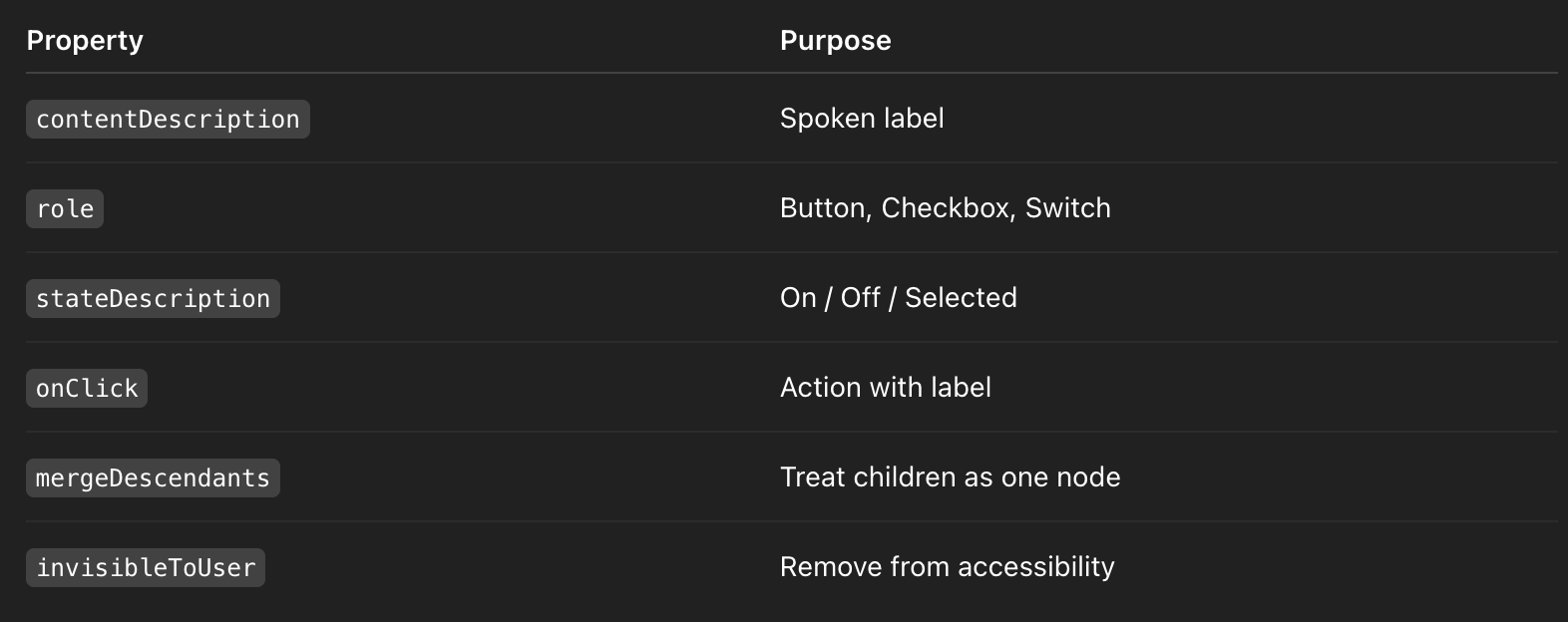
Your Accessible Button — Explained
Button(
    onClick = onClick,
    modifier = modifier.semantics {
        contentDescription = "Tap to $text"
        role = Role.Button
        onClick(label = "activates $text") {
            onClick()
            true
        }
    }
)
Why This Is Correct (Senior Signals)
✔ Explicit action label (TalkBack clarity)
✔ Explicit role (prevents ambiguity)
✔ No reliance on visual-only cues
Note: Button already sets role & click semantics—this override is useful when you need custom phrasing.
Merging Descendants (Critical for Lists)
Row(
    Modifier.semantics(mergeDescendants = true) {}
) {
    Icon(...)
    Text(item.title)
}
Why This Matters
Without merging:
TalkBack reads:
Icon. Text: Product name.
With merging:
TalkBack reads:
Product name.
✔ Cleaner UX
✔ Faster navigation
✔ Matches user mental model
Common Accessibility Anti-Patterns 🚨
❌ Decorative Icons Announced
Icon(imageVector = Icons.Default.Star)Fix:
Icon(
    imageVector = Icons.Default.Star,
    contentDescription = null
)
❌ Clickable Row Without Role
Modifier.clickable { }Fix:
Modifier.semantics { role = Role.Button }❌ Nested Clickables
- Confuses TalkBack focus
- Breaks action routing
clearAndSetSemantics (Advanced Control)
Modifier.clearAndSetSemantics {
    contentDescription = "Profile picture"
}
✔ Removes child semantics
✔ Full control over spoken output
✔ Useful for custom components
State & Dynamic Announcements
Modifier.semantics {
    stateDescription = if (checked) "Enabled" else "Disabled"
}
TalkBack announces state changes automatically.
LazyColumn & Accessibility Performance
- Each visible item = semantics node
- Merged semantics reduce node count
- Improves TalkBack navigation speed
Accessibility performance matters for large lists.
Testing Accessibility (Senior Signal)
Compose UI Tests
composeTestRule
    .onNodeWithContentDescription("Tap to Save")
    .assertHasClickAction()
Platform-Level Validation
- TalkBack
- Accessibility Scanner
- Layout Inspector → Semantics tab
AccessibilityNodeInfo Interop
Compose maps semantics to:
AccessibilityNodeInfoAccessibilityActionAccessibilityRole
This ensures compatibility with existing Android accessibility tooling.
Production Best Practices
✔ Every clickable has a role
✔ Every icon is either meaningful or hidden
✔ Merge list row semantics
✔ Use explicit action labels
✔ Test with TalkBack enabled
Interview One-Liner (Memorize This)
Jetpack Compose uses a Semantics tree to expose accessibility metadata such as roles, labels, actions, and state, allowing TalkBack and other services to interpret UI meaning independently of layout structure.
60. Canvas drawScope?
Core Interview Question
How do you do custom drawing in Jetpack Compose, and how does DrawScope work?
Short answer:
Compose provides a declarative, GPU-accelerated drawing API viaCanvasandDrawScope, replacing imperativeonDraw(Canvas)from the View system.
The deeper explanation is where seniority shows.
What Canvas and DrawScope Actually Are
Canvas(modifier = Modifier.size(300.dp)) {
    // this: DrawScope
}Canvasis a Composable- The lambda runs inside a DrawScope
DrawScopeprovides:- Size information
- Density-aware drawing
- High-level primitives (
drawRect,drawPath,drawArc, etc.)
You describe what to draw, Compose decides when to draw.
Compose Drawing Pipeline (Under the Hood)
State change
     ↓
Recomposition
     ↓
Draw invalidation
     ↓
DrawScope executed
     ↓
Skia → GPU
Important distinction:
Recomposition does not always mean redraw, and redraw does not always mean recomposition.
How DrawScope Differs from View onDraw()
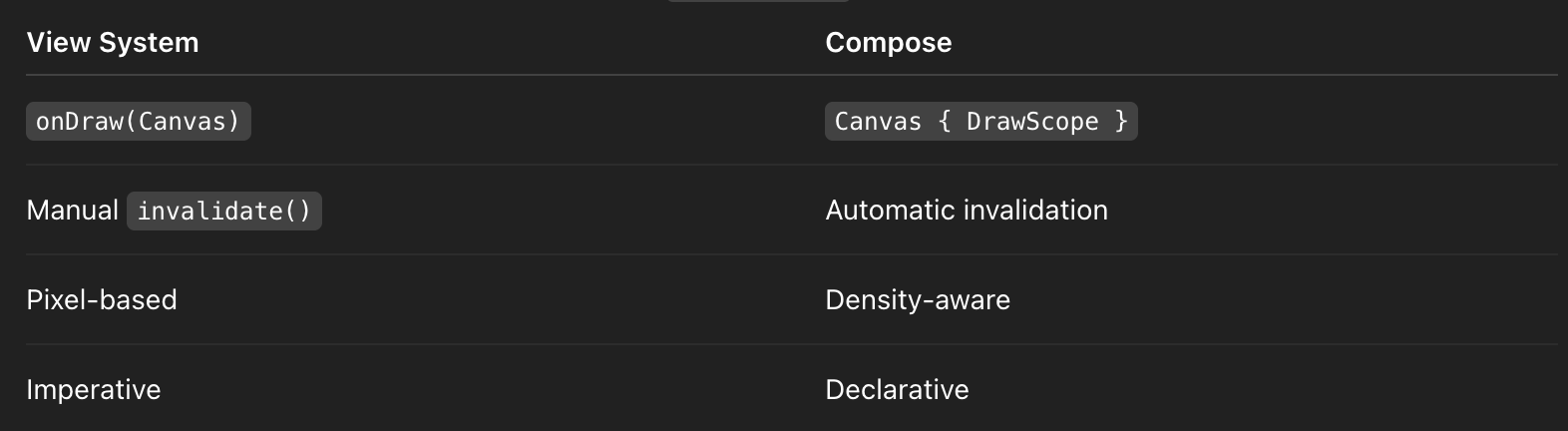
Your Custom Chart — Explained
Canvas(modifier.size(300.dp)) {
    val padding = 50f
    val maxValue = data.maxOrNull() ?: 1f
✔ size comes from DrawScope
✔ Drawing automatically respects density
✔ No manual invalidation
Drawing Bars
drawRect(
    color = Color.Blue,
    topLeft = Offset(x, size.height - padding - barHeight),
    size = Size(50f, barHeight)
)
✔ Coordinates in pixels
✔ Hardware accelerated
✔ Skia-backed
Drawing Text (Compose Way)
drawText(
    textMeasurer = LocalTextMeasurer.current,
    text = "%.0f".format(value),
    x = x + 10,
    y = size.height - padding - barHeight - 10
)
Senior nuance:
- Text is drawn during draw phase, not composition
- Use
TextMeasurerto avoid recomposition cost
Performance Characteristics (Senior Signals)
✔ GPU accelerated by default
✔ No object allocations required per frame
✔ Efficient invalidation region
Compose Canvas easily supports:
- 60fps animations
- Complex vector graphics
- Interactive charts
Animations with Canvas (Production Pattern)
val animatedValue by animateFloatAsState(targetValue)or
val anim = remember { Animatable(0f) }
LaunchedEffect(data) {
    anim.animateTo(1f)
}
Use animation state inside DrawScope:
val barHeight = anim.value * targetHeightCanvas redraws automatically when animation state changes.
drawBehind vs Canvas (Interview Favorite)
drawBehind
- Attached to existing composable
- Draws behind content
Modifier.drawBehind {
    drawCircle(Color.Red)
}
Canvas
- Standalone drawing surface
- Full control over size
Use drawBehind when decorating UI; Canvas when creating graphics.
Coordinate System & Density
- Origin: top-left
- Units: pixels
- Use
dp.toPx()only when needed - Prefer
sizefrom DrawScope
Common Pitfalls 🚨
❌ Heavy Computation in DrawScope
- Move calculations to
remember - Precompute paths
❌ Allocating Objects Per Frame
val path = Path() // BAD inside drawFix:
val path = remember { Path() }❌ Mixing Layout & Drawing Logic
- Canvas should not measure layout
- Use
Modifier.onSizeChangedif needed
Advanced Drawing APIs
drawPathdrawArcdrawLinedrawIntoCanvas(interop with native Canvas)BlendMode/ColorFilter
Accessibility Consideration
Canvas is not accessible by default.
Wrap with semantics:
Modifier.semantics {
    contentDescription = "Sales chart for last 7 days"
}
Interview One-Liner (Memorize This)
Canvas in Compose provides a declarative, hardware-accelerated drawing API via DrawScope, automatically handling invalidation and density while supporting smooth animations and complex custom graphics.


.png)


How many more such interview questions series to come
ReplyDeleteThank you for your interest in the interview question series.
DeleteThis series is planned to be published in 10 comprehensive parts, covering key topics relevant to Android SDE-2 and SDE-3 interviews. You can explore the already published parts using the links below:
https://www.droidunplugged.com/2026/01/cracking-android-sde2sde3-interviews-in.html
https://www.droidunplugged.com/2026/01/cracking-android-sde2sde3-interviews-in_2.html
https://www.droidunplugged.com/2026/01/cracking-android-sde2sde3-interviews-in_7.html
https://www.droidunplugged.com/2026/01/cracking-android-sde2sde3-interviews-in_11.html
Upcoming parts will be released soon. Thank you for your continued support.